AFR Thailand Badge Generator User Guide
This generator was developed in accordance with Section B-3, Staff Badge, of the AFR Thailand Visual Identity System. Please review the user instructions carefully. If you have any questions, feel free to contact the AFR Marketing Department.
Select a Preset
Choose AFR Thailand preset from the drop-down menu.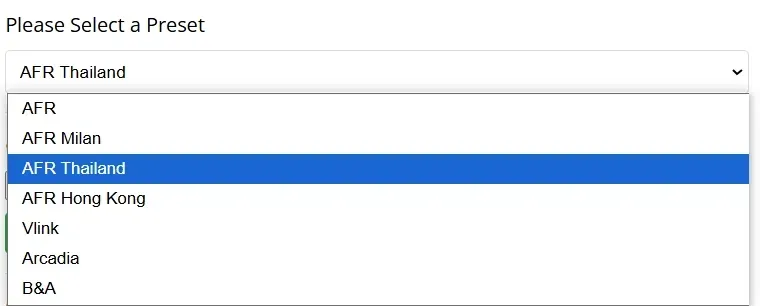
Generate a Single Badge
Fill in the Form
- Name: Enter the Thai/English name along with the corresponding English name. Capitalize the first letter of the first name and last name.

- Department: Enter the Thai/English department name along with the corresponding English name. Capitalize the first letter of each word.

- Job title: Enter the Thai job title along with the corresponding English name. Capitalize the first letter of each word.

- Employee ID: e.g.,
No. 12345 - Upload Photo (Optional): One-inch blue background passport-style photo (2.5 × 3.5 cm).
- If you don’t upload a photo here, you’ll need to paste it into the space provided on the badge after it’s printed.
Preview & Download
- Click the Badge Preview button to preview the badge.
- After previewing, the Download Badge button will appear. Click to download.

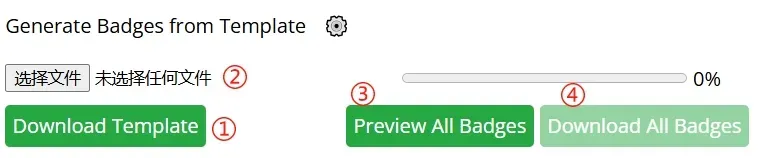
Batch Generate Badges
- Click Download Template to get the Excel template and fill in the required information.

- Delete the example row “ชื่อ ตัวแทน” when filling in.
- Upload the filled Excel file.
- Click Preview All Badges to preview the batch badges.
- Click Download All Badges to download all generated badges.
Notes
- Ensure the information is accurate to avoid generating incorrect badges.
- You can only download the badge after previewing. Carefully check for display or layout issues.
- No official seal is required on the badge.
- Color Printing Paper Requirements: Use 120g color-specific printing paper.
(Recommended: Kodak Double-Sided Glossy Paper) - The front and back of the badge should be assembled separately.
- After attaching the photo, both sides must be laminated.
- For questions, contact the Marketing Department.